Introduction
If you are working with Selenium automation or web scraping, there is one tool you cannot live without: ChromeDriver.
Whether you are a beginner testing your first Python script or an expert building a complex test framework, you might face a common error: “SessionNotCreatedException: This version of ChromeDriver only supports Chrome version XX.”
This error happens because your ChromeDriver version does not match your Google Chrome browser version.
In this guide, we will show you exactly how to download ChromeDriver, set it up on Windows, Mac, and Linux, and fix common errors. We will also provide a clear compatibility matrix so you never download the wrong version again.
What is ChromeDriver?
ChromeDriver is a standalone server that acts as a bridge between your Selenium code and the Google Chrome browser.
Think of it as a translator. Your code (in Python, Java, C#, etc.) speaks “WebDriver language.” Google Chrome speaks “Browser language.” ChromeDriver translates your commands so the browser understands what to do (like clicking a button or typing text).
Why Do You Need It?
- Automation: To run automated tests on Google Chrome.
- Web Scraping: To control the browser programmatically.
- Cross-Browser Testing: It is essential for verifying your website works on Chrome.
Step 1: Check Your Chrome Browser Version
Before you click any “download” button, you must know which version of Chrome you are using. If these versions don’t match, your code will crash.
How to Check Your Version:
- Open Google Chrome.
- Click the three vertical dots (Menu) in the top-right corner.
- Hover over Help.
- Click About Google Chrome.
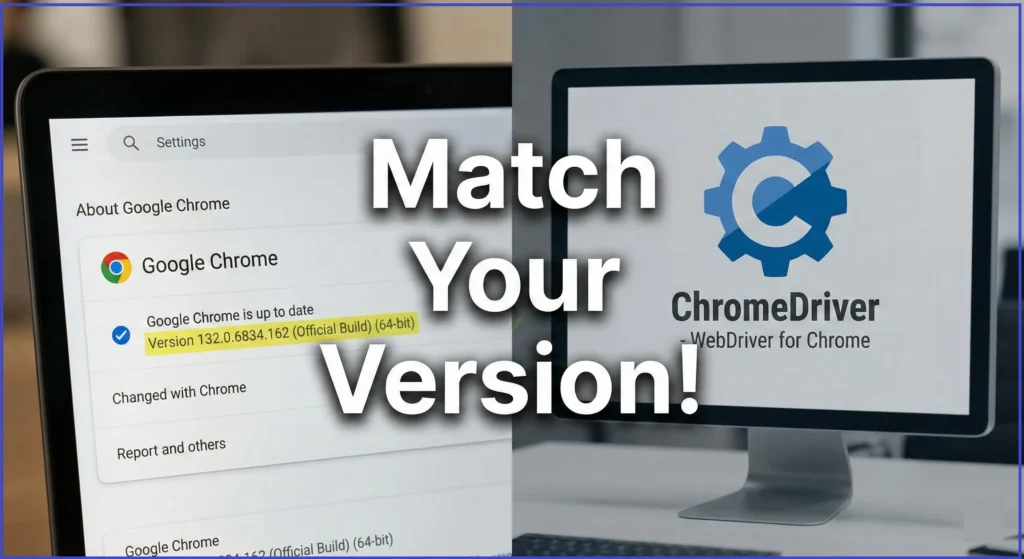
Note: You will see a number like 132.0.6834.160. The first number (132) is the Major Version. This is the most important part.
tep 2: Download ChromeDriver (Official Links)
Google has changed how we download ChromeDriver. For versions 115 and newer, there is a new dashboard.
For Chrome Version 115 and Newer (Current)
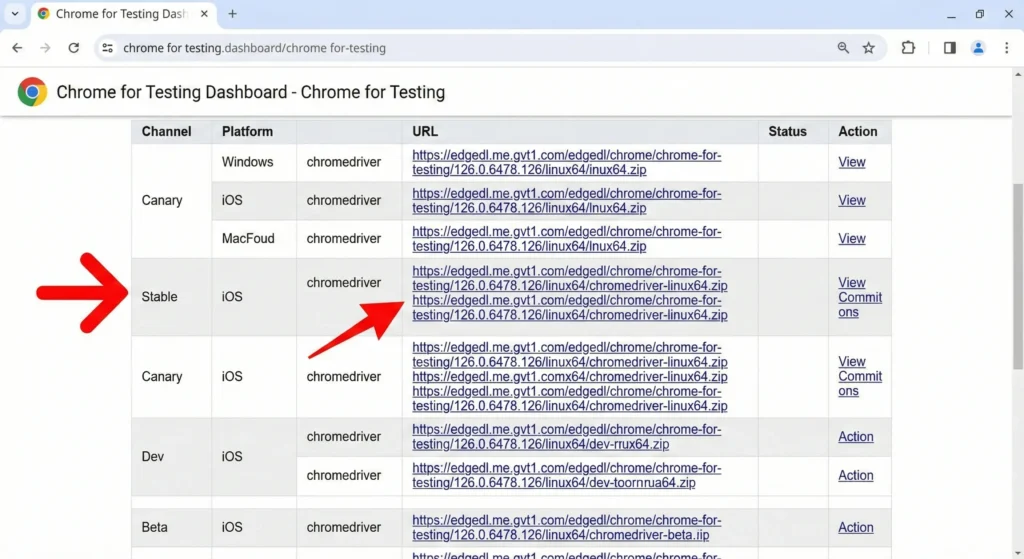
Google now uses the “Chrome for Testing” dashboard.
- Visit the Official Dashboard: Chrome for Testing Availability
- Find Your Version: Look for the row that matches your Chrome version (e.g.,
Stable,Beta, or a specific version like132.0.6834.160). - Select Your Operating System:
win64(Windows)mac-x64(Mac Intel)mac-arm64(Mac M1/M2/M3)linux64(Linux)
- Copy the URL: Copy the link ending in
.zipand paste it into your browser to start the download.
For Chrome Version 114 and Older (Legacy)
If you are using an older system (Windows 7/8) or an older Chrome version:
- Visit the Legacy Page: ChromeDriver Downloads (Old)
- Click on the version number that matches your browser.
- Download the
.zipfile.
ChromeDriver Compatibility Matrix
Use this table for a quick reference. Always match the Major Version.
| Chrome Browser Version | Required ChromeDriver Version | Download Source |
| Chrome 133+ (Canary) | ChromeDriver 133.x | Chrome for Testing |
| Chrome 132 (Stable) | ChromeDriver 132.x | Chrome for Testing |
| Chrome 131 | ChromeDriver 131.x | Chrome for Testing |
| Chrome 115 – 130 | Match Exact Version | Chrome for Testing |
| Chrome 114 & Older | ChromeDriver 114.x | Legacy Downloads |
Step 3: Installation & Setup (Add to PATH)
Downloading the file is not enough. You must “unzip” it and tell your computer where it is.14 This is called “Adding to PATH”.15+1
For Windows Users:
- Unzip: Extract the downloaded
.zipfile.16 You will seechromedriver.exe.17+1 - Move File: Move this file to a safe folder, e.g.,
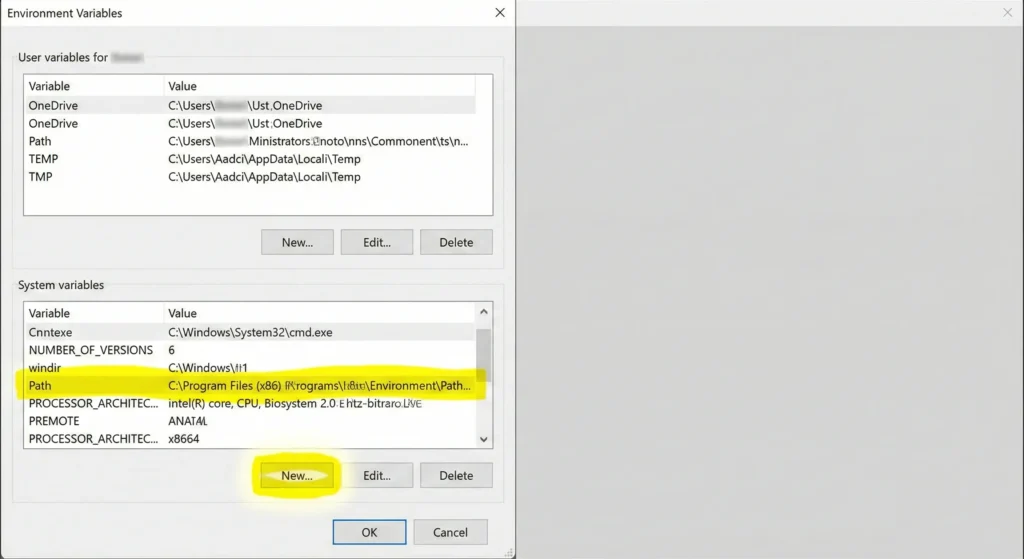
C:\Selenium\. - Edit Environment Variables:
- Press
Win + Sand search for “Edit the system environment variables”.18 - Click Environment Variables.
- Under System Variables, find Path and click Edit.19
- Click New and paste your folder path (
C:\Selenium\). - Click OK on all windows.
- Press
For Mac / Linux Users:
- Unzip: Double-click the file to unzip.20
- Move to Bin: Open your terminal and run this command to move the driver to a global folder:Bash
sudo mv chromedriver /usr/local/bin/ - Make Executable: Sometimes Mac blocks the driver. Run this to allow it:Bash
chmod +x /usr/local/bin/chromedriver - Remove Security Check (Mac Only): If you get a “Malicious Software” warning:Bash
xattr -d com.apple.quarantine /usr/local/bin/chromedriver
How to Use ChromeDriver in Your Code
Once installed, you can use it in your scripts.
Python Selenium Example:
Python
from selenium import webdriver
from selenium.webdriver.chrome.service import Service

# If you added it to PATH, you don't need to specify the location
driver = webdriver.Chrome()

# If NOT in PATH, specify the location:
# service = Service(executable_path='C:/Selenium/chromedriver.exe')
# driver = webdriver.Chrome(service=service)

driver.get("https://www.google.com")
print(driver.title)
driver.quit()
Common Errors & Troubleshooting
Even with the right download, things can go wrong. Here are the top 3 errors and fixes.
Error 1: SessionNotCreatedException
“This version of ChromeDriver only supports Chrome version 130”
- Cause: Your Chrome browser auto-updated to v132, but your ChromeDriver is still v130.
- Fix: Check your Chrome version again and download the new chromedriver matching that version.
Error 2: “chromedriver” cannot be opened because the developer cannot be verified (Mac)
- Cause: Apple’s security blocks unverified apps.
- Fix: Run the quarantine command in Terminal:
xattr -d com.apple.quarantine /path/to/chromedriver
Error 3: The driver is not executable
- Cause: Linux/Mac permission issue.
- Fix: Run
chmod +x chromedriverin your terminal.
Advanced Tip: Use webdriver-manager (The Automatic Way)
Tired of manually downloading ChromeDriver every time Chrome updates? You can automate this!
There is a Python library called webdriver-manager that automatically downloads the correct version for you.
Install it:
Bash
pip install webdriver-manager
Use it:
Python
from selenium import webdriver
from selenium.webdriver.chrome.service import Service
from webdriver_manager.chrome import ChromeDriverManager

driver = webdriver.Chrome(service=Service(ChromeDriverManager().install()))
driver.get("https://www.google.com")
This is the #1 recommended method for modern developers.
Frequently Asked Questions (FAQ)
Q1: Is ChromeDriver free?
es, it is an open-source tool provided by the Chromium project.
Q2: How often should I update ChromeDriver?
Google Chrome updates roughly every 4 weeks. You will need to update ChromeDriver whenever your browser Major Version changes (e.g., from 131 to 132).
Q3: Can I stop Chrome from auto-updating?
It is difficult and not recommended for security. It is better to use webdriver-manager to handle the updates for you.
Q4: Does ChromeDriver work with Brave or Microsoft Edge?
No.
For Brave, you can often use ChromeDriver, but you must point the binary_location to the Brave executable.
For Edge, you need EdgeDriver.
For Firefox, you need GeckoDriver.
Conclusion
Downloading ChromeDriver doesn’t have to be confusing. The key takeaway is simple: Always match your Major Version.
- Check your Chrome version (
chrome://settings/help). - Go to Chrome for the Testing Dashboard.
- Download the matching zip file.
- Add it to your system PATH.
By following this guide, you will ensure your Selenium automation runs smoothly without those annoying version mismatch errors.
Next Steps:
- Download ChromeDriver Now
- Bookmark this page for your next update!